Updated October 13, 2026
You can take beautiful photos with the iPhone in your pocket by doing three things: prepare before the photo (clean lens, fast camera access, focus and exposure), think during the photo (composition, perspective and light), and finish after the photo (edit, back up and print). I’m Katie Donnelly, a Paris photographer, and this is my free iPhone photography course, updated in October 2026 for the newest iPhones. Everything here works on older iPhones too, unless I say otherwise.
What You’ll Find in This Blog:
Which iPhone Do You Need?
The one you have. The basics of a good photo are light, composition and timing, and they have not changed. At the time of writing, the newest models are the iPhone 18 Pro and iPhone 18 Pro Max, running iOS 27. I will point out what is new on them as we go, but please do not buy a new phone for this course.
Part 1: BEFORE You Take the Photo
Clean Your Lens
It sounds too simple, but it is the number one reason iPhone photos look hazy. Your phone lives in your pocket and your hands. Wipe the lenses with a soft cloth, or your t-shirt, before you shoot.
Open Your Camera More Quickly
The best photo is the one you did not miss.
- From the Lock Screen: swipe left and the camera opens. No unlocking needed.
- On iPhone 16 and later (except the iPhone 16e): press the Camera Control button on the side. Press it again to take the photo.
- On any iPhone: once the camera is open, either volume button takes the photo, which is steadier than tapping the screen.
Focusing
Tap the screen where you want the photo to be sharp. For a portrait, tap the eyes. If your subject keeps moving and the focus keeps jumping, touch and hold until you see AE/AF Lock. The focus and exposure now stay put until you tap somewhere else.
Using the Exposure Slider
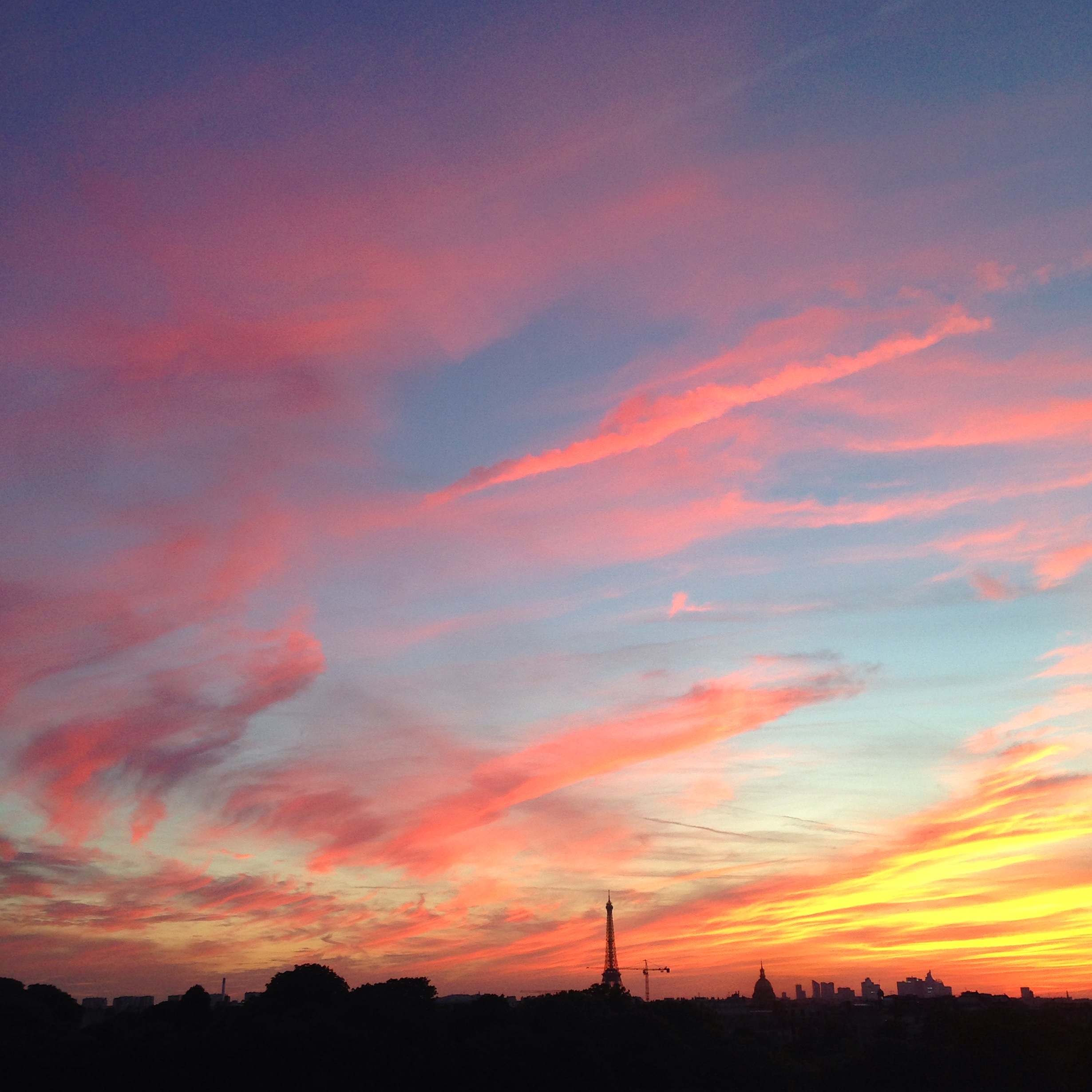
After you tap to focus, a little sun appears next to the yellow box. Drag it up to make the photo brighter and down to make it darker. I use this all the time for backlit portraits and sunsets, where the phone guesses wrong.
Burst Mode
For kids, pets and anything that moves, take a burst. Slide the shutter button to the left and hold, and the iPhone takes a rapid series of photos. Then keep the one where everyone’s eyes are open. You can also set the Volume Up button to shoot bursts in Settings, under Camera.
Read my 3 tips for sharp photos of kids in motion for more.
Part 2: DURING the Photo
Composition
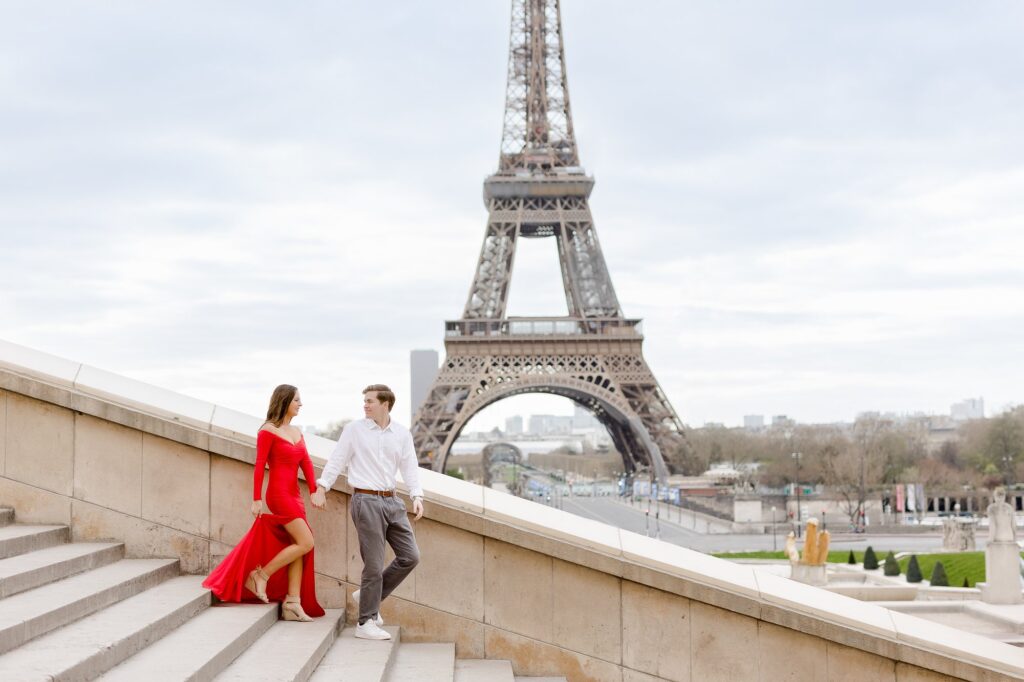
Turn on the grid: go to Settings, then Camera, and switch on Grid (and Level, to keep your horizons straight). Now place your subject where the lines cross instead of in the middle. That is the rule of thirds, and it is the fastest way to make a photo more interesting. For more, read the basics of composition and framing and straighten up your photos.
Perspective
Move your feet. Get lower, get higher, get closer. If you are photographing a child, get down on their level. And walk closer instead of pinching to zoom past your phone’s built-in lenses: here is why in what are megapixels.
Lighting
Light matters more than the phone. Indoors, turn off the lamps and move your subject next to a window. Outdoors, look for open shade, or go out in the golden hour, the hour after sunrise and the hour before sunset. Read finding the light inside on a cloudy day, my instant indoor lighting hack, and catchlights, the sparkle in the eyes that brings a portrait to life.
Use Portrait mode for a soft, blurry background behind a person. New on the iPhone 18 Pro: the main camera has a variable aperture, with four settings to choose from, so the background blur comes from the lens itself. If that sentence means nothing to you yet, read what is aperture.
Filters and Photographic Styles
Go easy. A filter should make the photo look more like the moment felt, not less. On recent iPhones, Photographic Styles let you set a look, warmer or cooler, softer or more contrasted, that the camera applies as you shoot, and you can change it afterwards. On the iPhone 18 Pro you can also adjust texture and grain. My advice: pick one style you love and stick with it, so your photos look like they belong together.
For the Curious: Manual Controls
The iPhone 18 Pro adds Pro controls in the Camera app for shutter speed, white balance and aperture, plus a histogram. If you want to learn what those do, I have a lesson on each: shutter speed, white balance, aperture and ISO.
Always the one behind the camera?
Hand it over for a morning. Our English-speaking team photographs families in Paris, so you are in the photos too. Sessions start at €150, and you see your photos the same day in our Saint-Germain studio.
Or first see how a Paris photoshoot with us works.
Part 3: AFTER the Photo
Edit in the Photos App
You do not need to buy anything. Open the photo, tap Edit, and start here:
- Crop and straighten. Fix the horizon and cut out distractions at the edges.
- Brightness and exposure. A small lift is usually all a photo needs.
- Warmth. Skin looks best slightly warm.
- Stop. If it looks edited, pull it back.
Back Up Your Photos
Phones get lost, dropped and stolen. Turn on iCloud Photos in Settings so your photos are saved automatically, and keep a second copy of your favorites somewhere else, like a computer or an external drive. Mark your favorites with the heart as you go, so they are easy to find later.
Print Them
We are one of the most documented generations in history and the least printed. Choose your ten favorite photos of the year and print them. A small album or a few framed prints will mean more than ten thousand photos on a phone. For inspiration, read why your photos belong on your walls.
Keep Learning
This lesson is part of The Authentic Portrait: A Parent’s Guide to Documenting Childhood, my photography guide for parents who want to learn the basics and take better photos of their kids, without spending hours and hours taking classes. I am working on a new edition of the guide. Until it is ready, you can read every lesson in The Authentic Portrait series.
This post contains affiliate links. If you buy through them I may earn a small commission, at no extra cost to you.
Traveling soon? Read travel photography tips for your best vacation photos and solo travel photography in Paris: tips on self-portraits. And when you want to be in the photos yourself, here is how to look good in photos, what to wear and my favorite things on ShopMy.
Enjoy!
x Katie
iPhone Photography Questions
Clean the lens, tap to focus, adjust the exposure with the sun slider, turn on the grid and use the rule of thirds, and look for soft light near a window or in open shade. Then crop, straighten and lightly brighten the photo in the Photos app.
No. Light, composition and timing matter more than the model. The iPhone 18 Pro adds a variable aperture and manual Pro controls, but everything else in this course works on older iPhones.
Touch and hold on the screen until AE/AF Lock appears. Focus and exposure stay locked until you tap somewhere else.
Slide the shutter button to the left and hold it. You can also set the Volume Up button to take bursts in Settings, under Camera.
Swipe left on the Lock Screen. On iPhone 16 and later, except the iPhone 16e, you can also press the Camera Control button on the side.
Go to Settings, then Camera, and switch on Grid. You can switch on Level there too, which helps keep your horizons straight.
Turn on iCloud Photos in Settings so photos are saved automatically, and keep a second copy of your favorites on a computer or an external drive.

About the author
Katie Donnelly, Paris Photographer
Katie Donnelly is an American photographer who opened her Paris studio in 2013 and was voted Best Portrait Photographer in Paris in 2017. She and her English-speaking team photograph families, couples and solo travelers at sunrise, so visitors go home with relaxed, real portraits instead of rushed selfies. Meet Katie and the team.
Ready to Book Your Paris Photoshoot?
You take the everyday photos. Let us take the ones with you in them.
- When: Mornings, just after sunrise, when the city is quiet
- Who: Families, couples, engagements and proposals, and solo travelers, with an English-speaking team
- Your photos: Viewed the same day at our studio in Saint-Germain-des-Prés
- Session fee: From €150. Inquire for our full price list.
Tell us your dates and we will help you plan the rest.
Or first see how a Paris photoshoot with us works.